The UX3405 is one of the most popular OLED laptops around, and the screen is why. It's also the part that hurts most when something goes wrong. The tricky bit is that "screen problem" covers three very different situations with very different costs: burn-in, a hardware failure, and physical damage.
Know your panel
ASUS lists the Zenbook 14 OLED UX3405 with a 14-inch, 2880 x 1800 ASUS Lumina OLED at 120Hz, 16:10, 100% DCI-P3, with touch as an option. That last part matters. Touch and non-touch panels aren't interchangeable, and ASUS's own spec notes list different brightness for each (up to 500 nits touch, up to 600 nits non-touch). It comes in Foggy Silver and Ponder Blue. Check your exact model (like UX3405MA or UX3405CA) on the sticker under the laptop or in the MyASUS app before you price anything.
Which screen fits your laptop
ASUS's spec sheet lists the UX3405 with several 14-inch, 16:10 OLED panels. They're all OLED, but they aren't interchangeable:
| Panel | Resolution | Refresh | Touch | Brightness (typical / HDR peak) |
|---|---|---|---|---|
| 3K OLED | 2880 x 1800 | 120Hz | Touch, with stylus support | 400 / 500 nits |
| 3K OLED | 2880 x 1800 | 120Hz | Non-touch | 400 / 600 nits |
| 3K OLED (brighter version) | 2880 x 1800 | 120Hz | Touch or non-touch | 500 / 1,000 nits |
| WUXGA OLED | 1920 x 1200 | 60Hz | Touch, with stylus support | 400 / 500 nits |
| WUXGA OLED | 1920 x 1200 | 60Hz | Non-touch | 400 / 600 nits |
How to check which one you have:
- Windows Settings: open Settings > System > Display. The resolution marked "(Recommended)" is your panel's native resolution, either 2880 x 1800 or 1920 x 1200. Under Advanced display you'll see the refresh rate, 120Hz or 60Hz.
- Touch or not: Settings > System > About lists "Pen and touch." If it says no pen or touch input is available, you have a non-touch panel.
- Panel sticker: the panel's own part number is printed on a label on its back. A shop can read it once the old screen is out, and it's the safest number to match. You can also see a panel code in Device Manager under Monitors > your display > Properties > Details > Hardware Ids.
- Model number: the full model (like UX3405MA or UX3405CA plus the SKU) on the bottom sticker or in MyASUS tells ASUS support exactly which panel shipped.
What it costs
| Problem | Route | What you pay |
|---|---|---|
| Burn-in, in warranty | ASUS panel swap | $0 (ASUS calls it free within the warranty period) |
| Dead lines, flicker, touch failure with no damage, in warranty | ASUS warranty | $0 |
| Drop or spill, with Accidental Damage Protection | ASUS Premium Care ADP | Covered up to a cap equal to the purchase price |
| Drop or spill, no plan | ASUS or a shop | Quote; ASUS doesn't publish a flat price |
| Drop or spill, at an independent shop | Aftermarket screen plus labor | About $195 to $445, depending on the part (see below) |
Replacement screen part prices
| Option | Resolution | Panel and connector | Replacement screen part price | Shop price range (part + $120 to $150 labor) |
|---|---|---|---|---|
| OLED panel only | Not stated on the listing, so match yours | 14.0-inch OLED, no touch layer listed | $74.99 | $195 to $225 |
| OLED touch assembly (panel, touch layer and bezel) | Not stated on the listing, so match yours | 14.0-inch OLED touch, 40-pin connector | $144.99 | $265 to $295 |
| OLED touch assembly, earlier listing | 2880 x 1800, 120Hz | 14.0-inch OLED touch | $294.19 | $415 to $445 |
Both newer listings were out of stock when we checked and didn't print a panel part number, so ask the shop to match the number on your old panel. The $144.99 and $294.19 parts are both OLED touch assemblies, but only the $294.19 listing stated 3K and 120Hz. The cheaper one may be the 1920 x 1200 version, so confirm the resolution before you pay. Labor usually runs $120 to $150 for these screens because OLED and touch screens are delicate jobs, so each range is the part plus $120 at the low end and plus $150 at the high end.
ASUS's Premium Care page says its Accidental Damage Protection covers drops, falls, liquid damage, electrical surges and accidental breakage in normal use, with total repair costs capped at the product's purchase price. Repaired parts get three months of coverage or whatever's left of your warranty. ASUS sells these plans through the MyASUS app and the ASUS Store, and the page mentioned a 10% code (APCARE) for MyASUS users. It didn't list plan prices.
Burn-in, damage, or something else?
- Burn-in looks like a faint ghost of something that stays on screen a lot, such as the taskbar or browser tabs, visible on gray or solid backgrounds. The rest of the screen works normally.
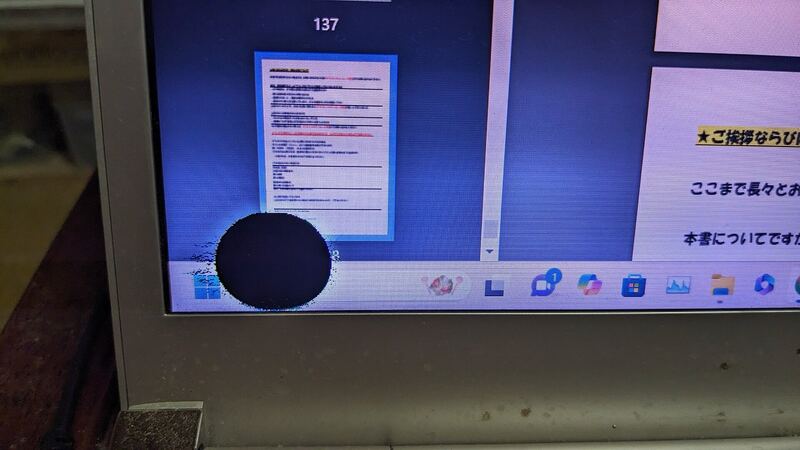
- Physical damage shows up as cracks, black or purple blotches that spread, or a patch that stops responding to touch after a drop or pressure.
- Lines or flicker that change when you tilt the lid often point to the display cable, which is usually cheaper than the panel.
- External monitor test: plug into a USB-C or HDMI display. If the external picture is perfect, the graphics are fine and the issue is in the lid.
- Touch only: update drivers through MyASUS and Windows Update, and check the touch device in Device Manager before assuming the panel is bad.
Why DIY is risky here
OLED panels are thin and easy to crack while you're installing them, and aftermarket listings often ship a "compatible alternative" unless you send a photo of your old panel's label. One aftermarket listing tells buyers to check the screen model and connector first. If you get the touch version wrong, or a panel with a different connector, you've paid for a part you can't use. Unless you've done laptop screens before, have ASUS or a shop handle it.
Ask before you pay
- Is the panel OLED at the same resolution (2880 x 1800 or 1920 x 1200) and refresh rate as mine, and touch or non-touch to match?
- Is it a full assembly or just the panel?
- What warranty comes with the part and labor? (uBreakiFix, which lists ASUS screen repair, says most repairs get a 1-year limited warranty and the diagnostic is free.)
- If it's burn-in, have you checked whether ASUS will swap it free first?
Worth fixing?
If it's burn-in under warranty, absolutely, it's free. A cracked screen on a newer unit is usually worth fixing too, since the panel is a fraction of the laptop's price. If you're paying full price on an older Zenbook that also has a tired battery, run it through our repair-or-replace calculator. More fixes are on the ASUS Zenbook 14 OLED repair page, and battery help is in our Zenbook 14 OLED battery guide.
Prices checked October 15, 2026.