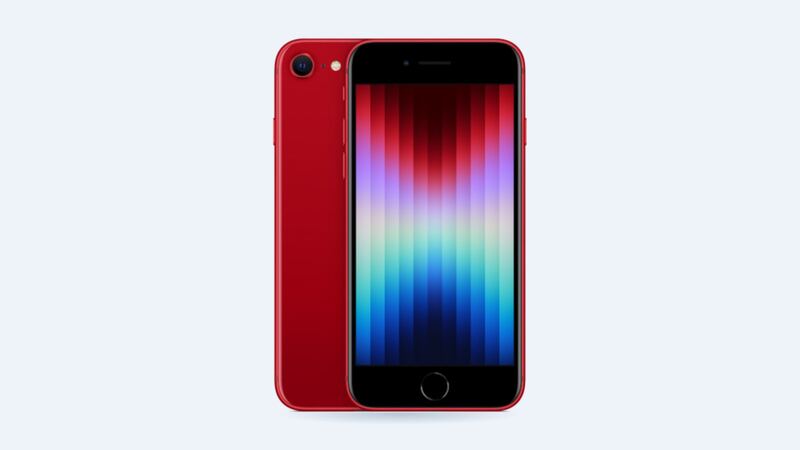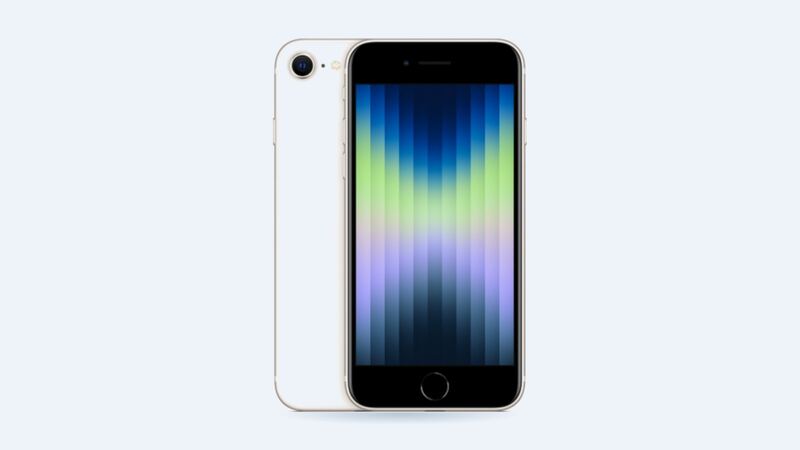
The 2022 iPhone SE is one of the last iPhones with a Home button, and Touch ID is built right into it. That's great until it stops reading your thumb, or you press it and nothing happens. Before you book a repair, work through the free stuff. Most of the time, that's all it takes.
First, figure out which problem you have
These are two different issues, and they have different fixes:
| What you notice | Likely cause |
|---|---|
| Button "clicks" and goes Home, but Touch ID fails | Dirty or wet finger, case or protector in the way, bad fingerprint scan, software glitch |
| Touch ID says it can't be activated or is greyed out | Software glitch, or the sensor or its connection is damaged |
| Press does nothing at all, but Touch ID still unlocks | Damage to the button's pressure sensing, often after liquid exposure |
| Both stop working after a drop or a screen repair | Cracked button, torn cable, or the original button wasn't moved to the new screen |
8 free fixes to try first
Apple's own Touch ID checklist covers most of these. Test after each step.
- 1. Update iOS. Settings > General > Software Update. The iPhone SE (3rd gen) runs iOS 27.
- 2. Clean and dry everything. Wipe the button and your finger. Lotion, sweat and water all confuse the sensor.
- 3. Cover the whole sensor. Your finger should touch the metal ring around the button, not just the middle. Rest it there; don't jam it down.
- 4. Remove the case and screen protector. Thick cases and protectors with a cutout that's too small are common culprits.
- 5. Check the settings. Settings > Touch ID & Passcode. Make sure iPhone Unlock is on and at least one fingerprint is saved.
- 6. Delete and re-add your fingerprint. Fingerprints change a bit over time (hello, dry winter skin). A fresh scan often fixes it. Try a different finger too.
- 7. Restart the phone. It clears a lot of weird glitches.
- 8. Back up and test a clean setup. If nothing else works, back up, erase the phone and test Touch ID before restoring your backup. If it works on a clean setup, the problem was software.
No Home button? Use the one on the screen
If the button stopped responding but you need the phone today, turn on AssistiveTouch: Settings > Accessibility > Touch > AssistiveTouch. A floating on-screen button appears. Tap it, then tap Home. It's not pretty, but it gets you through until you decide on a repair.
Why a shop can't just put in a new button
Here's the catch most people don't know. On iPhones with Touch ID, Apple pairs the Home button with the phone's main logic board at the factory. Swap in a different button and you may get the Home function back, but fingerprint unlock won't work. A shop can't redo that pairing.
That's also why screen repairs on this phone need care. The Home button sits on the screen assembly, so a shop must move your original button to the new screen. Ask about that before you hand the phone over. If the cable gets torn during the move, Touch ID is gone.
What a repair costs
| Option | Price | Touch ID afterward? |
|---|---|---|
| Free fixes above | $0 | Yes, if it was software or dirt |
| Apple, other damage (out of warranty) | $329 | Yes |
| Apple with AppleCare+ | $99 | Yes |
| Shop installs aftermarket button | Varies | No, Home press only |
Apple's "other damage" price is a catch-all. Apple has to inspect the phone first, and the final price can change.
Is it worth fixing?
If the free fixes don't work, it comes down to how much you care about Touch ID. Living with AssistiveTouch and a passcode costs nothing. Paying Apple $329 on a phone that started at $429 (64GB) in 2022 is a tough sell, but it's the only way to get Touch ID back if the button is truly broken. If the battery is also getting weak, check our iPhone SE (3rd gen) battery replacement guide, and see every price on the iPhone SE (3rd generation) page.
Apple prices checked October 14, 2026.